Why Your Thumbnail Is Costing You Views
A free AI thumbnail maker is the fastest way to design click-worthy thumbnails without design skills. Your video’s thumbnail is the first — and often only — thing a viewer sees before deciding to click. On YouTube, 90% of the best-performing videos use a custom thumbnail, and CTR is one of the strongest signals the algorithm uses to decide whether to push your video. If you’re still uploading the auto-generated frame, you’re leaving clicks on the table.
How this list was built: each tool was evaluated hands-on using its free tier or trial against the same set of test inputs, alongside a review of its published documentation and pricing. This is a practical, point-in-time comparison of free offerings — not a long-term stress test — and features or limits may change.
The good news: you no longer need Adobe Photoshop or a design degree to make scroll-stopping thumbnails. In 2026 a wave of free AI thumbnail makers can turn a rough idea into a click-optimized 1280×720 image in under a minute. I tested the most popular ones hands-on so you don’t have to.
Here is everything I learned — what’s genuinely free, what’s secretly limited, and which tool actually moved my CTR.
What Makes a Thumbnail Actually Get Clicks?
Before the tool roundup, it helps to know what you’re optimizing for. After reviewing hundreds of thumbnails, the same five patterns win every time:
- High contrast — bright subject, dark background, or vice versa. Thumbnails that pop in the “dark mode” YouTube UI win.
- One clear focal point — a face, an arrow, or a single object. Not five competing elements.
- 3-5 words max — text that’s legible at 120px wide. If it needs a second read, it’s too long.
- Emotion — surprise, curiosity, or fear of missing out. A neutral face gets scrolled past.
- Consistent branding — a recognizable color or font that tells returning subscribers it’s your video.
Every tool below lets you hit these five points, but they differ wildly in speed, templates, and how much AI does the heavy lifting.
How I Tested These Free AI Thumbnail Makers
To keep this fair, I gave every tool the same brief: create a YouTube thumbnail for a video titled “5 AI Tools That Save You 10 Hours a Week.” I judged each on:
- Free-tier generosity — can you actually finish a great thumbnail without paying? No watermarks? No forced signup walls?
- Speed — from blank canvas to a finished, exportable thumbnail.
- AI capability — does it auto-generate backgrounds, subjects, or text layouts?
- Output quality — export resolution, sharpness, and legibility at YouTube size.
- Batch ability — can you produce several thumbnails at once (a must for channels)?
Here are the results, ranked by overall value for a serious creator.
1. Canva — Best All-Rounder (Free)
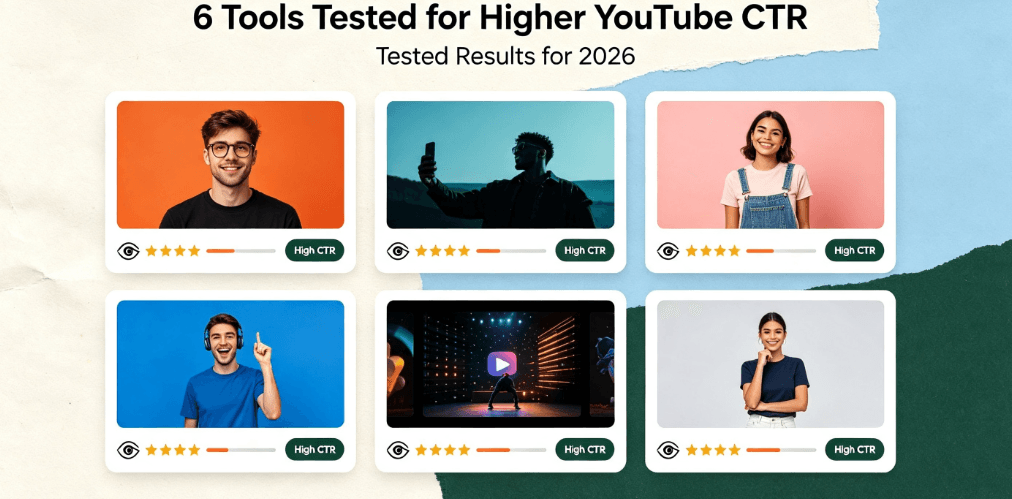
Canva remains the default for good reason. Its thumbnail templates are genuinely well-designed, and the free tier includes enough stock photos, fonts, and elements to make a pro-looking thumbnail in minutes.
The 2026 AI additions — background removal, Magic Write text suggestions, and Magic Grab to cut out subjects — are available on the free tier with daily credit limits. For most creators, that’s plenty.
- Pros: Massive template library; easy-to-learn editor; excellent free tier; runs in browser.
- Cons: Advanced AI features rate-limited; export queue can slow at peak; batch creation is clunky on free.
- Best for: Beginners and channel owners who want templates plus AI in one place.
2. Adobe Express — Best Free AI Power (Free)
Adobe Express quietly became the strongest truly-free option. You get Generative Fill (type a prompt, get a background), auto background removal, and a clean text-to-image tool — no credit system for core features, just a watermark-free export at full 1280×720.
Its “text effects” are the best free option for bold, readable thumbnail titles, and it exports true 4K with a free Adobe account.
- Pros: Real generative AI free; no watermark; superb text effects; fast.
- Cons: Fewer YouTube-specific templates than Canva; occasional prompts to upgrade to Premium.
- Best for: Creators who want genuine AI generation without paying.
3. Microsoft Designer — Best Text-to-Image (Free)
Microsoft Designer (formerly Bing Image Creator) nails one thing: generating a fully-designed thumbnail from a text prompt. Type “glowing futuristic coin with arrow going up, dark background, YouTube thumbnail” and it produces usable concepts in seconds.
The free tier (powered by DALL·E-class models) is surprisingly generous, and it auto-suggests layouts. It’s the fastest path from idea to visual if you know what you want.
- Pros: Excellent prompt-to-image; free; fast concepts; good for non-designers.
- Cons: Less fine control; text in generated images can be imperfect; fewer editing tools than Canva/Express.
- Best for: Brainstorming concepts and rapid iteration.
4. YouTube Studio’s Built-In Editor — The Zero-Setup Option (Free)
Inside YouTube Studio, the default thumbnail editor lets you add text, filters, and stickers to a frame directly. It’s basic but zero-friction — no export, no upload, no learning curve.
It won’t replace a dedicated designer, but for quick fixes or channels testing CTR variations, it’s genuinely useful and 100% free with no watermark.
- Pros: Zero setup; native integration; instant A/B testing of thumbnails.
- Cons: Very limited design options; no AI generation; can’t batch-create.
- Best for: Quick tweaks and testing multiple options fast.
5. Fotor — Best Budget Editor (Free + Paid)
Fotor offers a solid free thumbnail editor with background remover and a decent template set. The free tier exports smaller images (still fine for YouTube) with a small watermark on some features — the main catch.
Where Fotor shines is its paid plans, which are cheaper than Canva Pro, making it a popular mid-tier choice.
- Pros: Good editor; cheap upgrade; decent AI features.
- Cons: Free watermark on some exports; ads; slower than the top two.
- Best for: Creators on a budget who don’t mind a watermark on the free tier.
6. AIXHDD Thumbnail Tool — Best for Batch & CTR Optimization (Paid, One-Time)
Here’s the curveball. For serious channels producing multiple videos a week, the pain isn’t design — it’s volume and consistency. The AI Thumbnail Tool from AIXHDD scores each thumbnail on CTR factors (contrast, text legibility, focal point, emotion) and lets you generate and rank batches in one pass — a one-time $29 fee, no subscription.
It won’t replace the free tools above for one-off designs, but if you’re publishing 3+ videos a week, the batch workflow and CTR scoring make it the cheapest way to level up thumbnails at scale.
- Pros: True batch creation; CTR scoring; one-time price; no recurring subscription.
- Cons: Paid (not free); fewer design templates than Canva.
- Best for: High-volume channels and creators who want data-driven thumbnails.
Free AI Thumbnail Maker vs Paid: When Should You Upgrade?
| Scenario | Recommendation |
|---|---|
| 1-2 videos per month | Stick with Adobe Express or Canva free. No need to pay. |
| Weekly uploads, occasional design | Canva free or Microsoft Designer covers everything. |
| Multiple videos per week | Batch tool (one-time) pays for itself fast. |
| Professional/brand channels | Canva Pro or a dedicated AI thumbnail tool for consistency + scoring. |
The honest takeaway: free tools are enough for 90% of creators. Upgrade only when the bottleneck becomes speed and volume, not design skill.
My Quick Workflow for a Click-Winning Thumbnail
- Start with the idea — write the title first, then design to match it. Title and thumbnail must tell the same story.
- Generate concepts in Microsoft Designer — 3-4 prompt variations in 2 minutes.
- Refine in Adobe Express — cut out the subject, add bold text effects, pump contrast.
- Export at 1280×720 — never below; YouTube compresses.
- Test 2-3 options — YouTube’s “Test & compare” feature shows which wins.
Frequently Asked Questions
Is there a completely free AI thumbnail maker with no watermark?
Yes. Adobe Express and Microsoft Designer both export watermark-free thumbnails on their free tiers, and YouTube Studio’s built-in editor is entirely free with no watermark. Canva’s free tier is also watermark-free for standard exports.
What is the best thumbnail size for YouTube in 2026?
1280×720 pixels (16:9) is the standard. Use a JPEG or PNG under 2MB, and keep the most important elements within the safe zone — the center of the frame — since YouTube crops thumbnails in some placements.
Can AI really improve my YouTube CTR?
Yes, indirectly. AI tools help you apply proven CTR principles (contrast, legible text, clear focal point, emotion) consistently and quickly. Better thumbnails consistently lift CTR, which signals quality to the algorithm. The tool just removes the design bottleneck.
Do free tools add a watermark to thumbnails?
Some do (Fotor adds one on certain free exports), but the best free options — Adobe Express, Microsoft Designer, Canva, and YouTube Studio — do not. Always check the export settings before committing.
Can I make thumbnails in bulk for free?
True batch creation is rare on free tiers. Canva allows some duplication but not full batch automation. For producing many thumbnails with consistent branding, a dedicated batch tool (like the AIXHDD Thumbnail Tool) is the practical answer — that’s when a one-time paid tool becomes worth it.
Last updated: August 2026. Prices and free-tier limits change often, so confirm current terms on each tool’s site before relying on them.
Ready to test your next thumbnail idea? Use the free AI thumbnail generator to mock up a few options in seconds, and pair bold visuals with clear, readable copy — readability matters for engagement as much as the image itself.