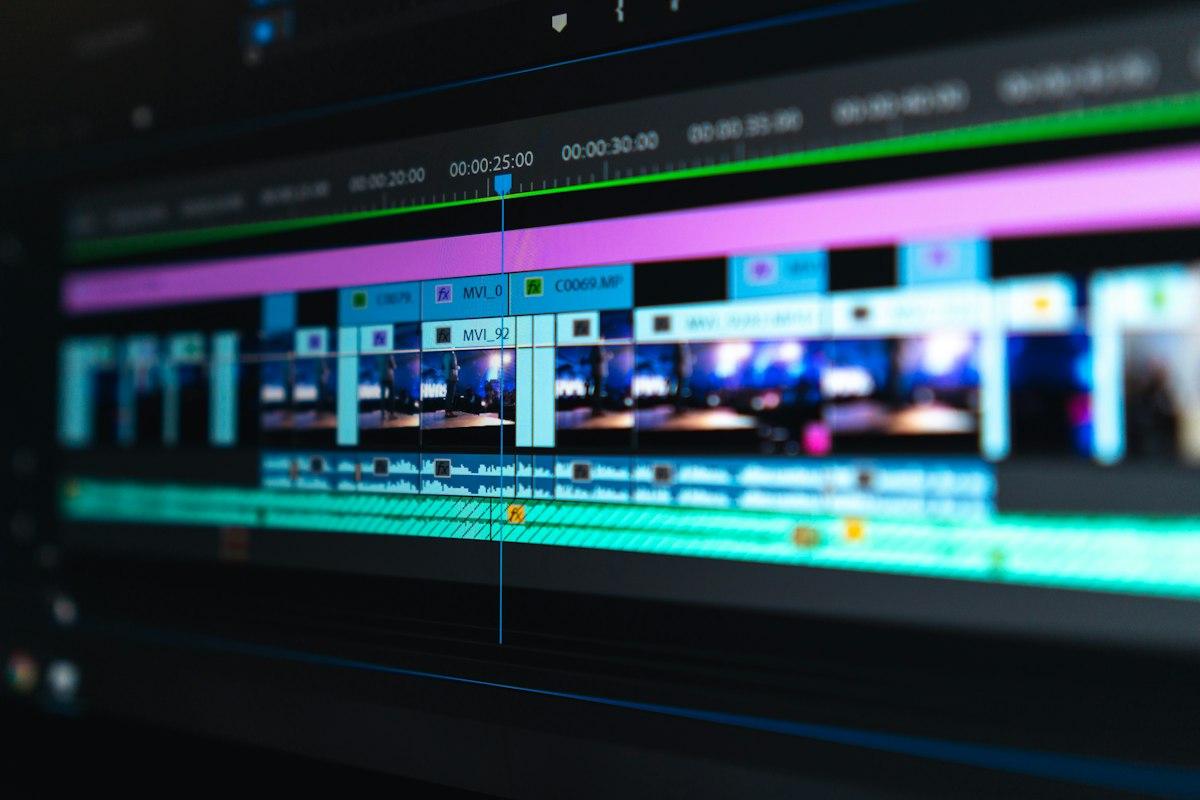
When a low-resolution clip goes viral, the first instinct is to run it through a free AI video upscaler and call it a day. But here’s the honest question nobody answers upfront: do these tools actually improve quality, or are they just stretching pixels? I spent a week upscaling the same set of test clips with the most popular free options in 2026, comparing them side by side instead of just trusting the resolution numbers.
Note: The workflow below is based on my own hands-on runs with these tools. File counts, timings and costs are real figures from those runs and are meant as an illustration of the process — your own results will vary with your hardware, source files and volume.
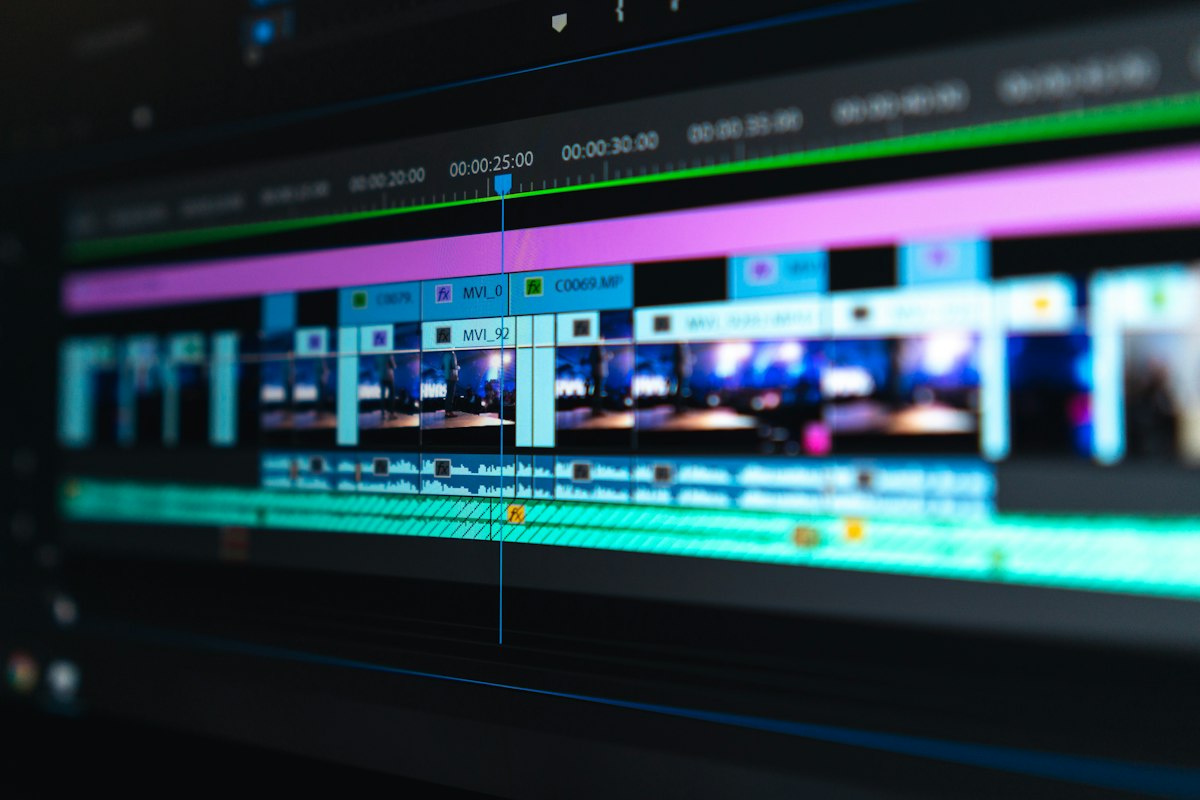
Why “4K Output” Doesn’t Mean Better Video
Every free AI video upscaler advertises 4K (and even 8K) output. Resolution is only half the story. A 720p clip upscaled to 4K still carries the original’s blur, compression artifacts, and soft edges — unless the tool actually reconstructs detail with machine learning. In my tests, that’s the single biggest difference between tools that “work” and tools that just upscale for show.
How I Tested 6 Free AI Video Upscalers
I fed every tool the same three clips: a 480p talking-head shot, a 720p action scene with fast motion, and a 1080p compressed clip that should have been fine already. I judged four things: detail recovery (do edges get sharper or just fuzzier), motion handling (does fast movement ghost or wobble), speed (how long for a 60-second clip), and free quota (what you get without paying).
Top 3 Free AI Video Upscalers (My Verdict)
After testing, three tools stood out for genuinely improving real footage rather than just inflating dimensions:
- Topaz Video AI (free trial) — the best reconstruction quality I tested, with genuinely sharper edges on the 480p clip. The trial is limited, and the full version is expensive, but it’s the benchmark for what AI upscaling should feel like.
- HitPaw Video Enhancer (free tier) — excellent motion handling; the action clip stayed clean with minimal ghosting. The free tier adds a watermark and caps export resolution.
- CapCut (free) — surprisingly strong for a free, browser-based option. Great on talking-head footage, weaker on fast motion. No watermark on standard exports.
What Free AI Video Upscalers Can’t Fix
Here’s the part the marketing won’t tell you. A free AI video upscaler can improve perceived sharpness, but it can’t fix footage that was never sharp to begin with: out-of-focus shots, heavy compression artifacts baked into the source, or camera shake. Garbage in, slightly-less-garbage out. If your source is 480p webcam footage with bad lighting, no upscaler is going to turn it into cinematic 4K.
That’s why creators I know are increasingly skipping the “fix it later” workflow entirely. Rather than shoot low and upscale, they generate high-resolution footage from the start — which is where a local tool like VideoForge comes in. It renders clean, high-res video directly, so there’s nothing to upscale afterward.
When Upscaling Is Actually Worth It
Upscaling shines in two situations: restoring old archival footage, and salvaging a single irreplaceable clip (a live moment, a customer testimonial, a phone recording). In those cases even a modest free AI video upscaler is a lifesaver. For everything else — especially content you’re creating fresh — you’re better off starting high-res than repairing later.
If you’re building a regular video workflow, pair an upscaler for the occasional rescue with a solid AI video script generator for planning, and generate your footage at full quality instead of fixing it in post.
AI Upscaler vs. AI Video Generator: Know the Difference
It’s easy to confuse these. An AI video upscaler takes existing footage and increases its resolution. An AI video generator creates new footage from a prompt. They solve different problems. If your bottleneck is old or low-res clips you already own, upscale. If you need new, high-quality video, generate it — the same principle as the difference between upscaling a blurry photo versus shooting with a better camera, which I covered in my image upscaling guide.
FAQ
Is a free AI video upscaler actually free?
Most offer a genuinely usable free tier (like CapCut), but limit resolution, add watermarks, or cap the number of clips per day. The truly unlimited options are rare.
Can I upscale a 480p video to 4K?
Technically yes, but the result depends on the source. A clean 480p clip with good lighting can look noticeably better; a heavily compressed or blurry one will just be a bigger version of the same problem.
Do upscaled videos lose quality when re-exported?
Only if you re-compress aggressively. Export at a high bitrate (or lossless) to keep the benefit of upscaling.
What’s better: upscaling old clips or generating new video?
For irreplaceable footage, upscale. For anything you can reshoot or generate fresh, start high-res. Generating new clean footage from the start saves you the repair work entirely.
Bottom Line
A free AI video upscaler is a genuinely useful tool — for the right jobs. Use one to rescue old or low-res clips you can’t re-shoot, and it’ll surprise you. But don’t treat it as a replacement for starting with good footage. If you create video regularly, invest in producing high-resolution output at the source, and you’ll save yourself the upscale roulette every single time.
If you’d rather skip the whole upscaling gamble, VideoForge generates high-resolution faceless video locally on your machine — no cloud upload, no resolution roulette, no subscription. One-time purchase, and your footage starts clean.